How to Scan the QR Code on Your LESCO Electricity Bill
In This Guide
1. What the bill QR code is 2. How to scan it step by step 3. Scanning on Android and iPhone 4. What you can do after scanning 5. Safety and scam warnings 6. QR code not scanning? Fixes 7. FAQsWhat Is the QR Code on an Electricity Bill?
A QR code (Quick Response code) is a square pattern of black and white dots that a phone camera can read in a second. On a LESCO bill, it carries bill-related data such as the reference number, so you do not have to type long digits by hand.
LESCO, the Lahore Electric Supply Company, serves Lahore, Kasur, Okara, Sheikhupura and Nankana Sahib. As more consumers use mobile banking and wallets such as JazzCash and Easypaisa, utilities and banks have been moving toward quicker, scan-based payment flows.
Why it helps
- Fewer typing mistakes: one wrong digit in a 14-digit number can send money to the wrong account.
- Speed: details can fill in automatically in supported apps.
- Convenience: you can open or verify your bill straight from the paper copy.
How to Scan the QR Code on Your LESCO Bill, Step by Step
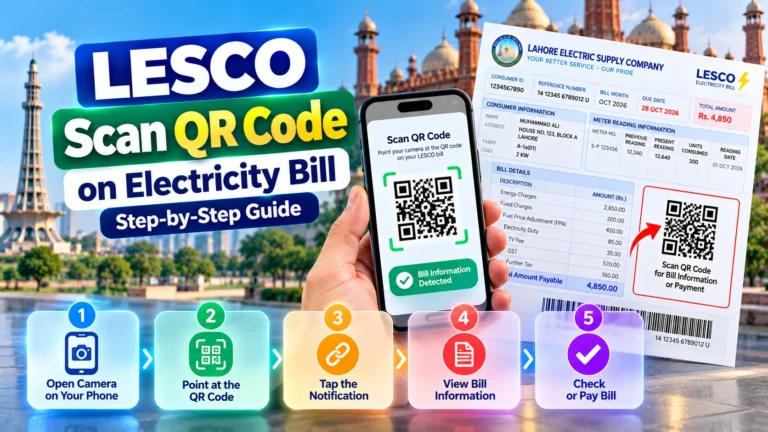
- Place the bill on a flat surface. A folded or curved page can break the pattern.
- Use good light. Daylight or a bright lamp works best. Avoid glare on glossy paper.
- Open a scanner. Use your phone camera, Google Lens or the scan option inside your banking app.
- Hold your phone 15 to 25 cm away. Keep the full code inside the frame.
- Wait for recognition. A link, bill detail or payment prompt will appear.
- Verify before you tap. Read the address or payee name carefully.
- Confirm the amount and pay. Compare it with the figure printed on your bill.
- Save the receipt. Take a screenshot and keep it as proof.
The same steps work for a digital bill on another screen. For a PDF or duplicate copy, use a second device to scan.
Scan the QR Code on Android and iPhone
| Device | Easiest way | Backup option |
|---|---|---|
| Android | Open the camera and point at the code | Google Lens or Google app |
| iPhone | Open the camera and tap the pop-up banner | Control Centre code scanner |
| Banking app | Tap Scan or Scan to Pay | Enter the reference number manually |
| JazzCash / Easypaisa | Use the in-app scanner | Bill Payment menu |
Voice assistant tip
If you ask your phone “How do I scan a QR code?”, the answer is always the same: open the camera and point it at the code. No special app is needed on modern phones.
Scanning from a screenshot
Received a bill as an image on WhatsApp? Save it, open Google Lens or your gallery’s scan option and select the image. It works for most clear screenshots.
What Can You Do After Scanning the QR Code?
Depending on the bill and your app, scanning may let you:
- Open an online copy of your bill, similar to a LESCO duplicate bill.
- Fill the reference number and amount into a payment screen.
- Reduce errors when starting LESCO bill payment from a bank app.
- Confirm that the bill belongs to your connection.
Scanning versus typing the reference number
| Point | Scan QR | Type reference number |
|---|---|---|
| Speed | Very fast | Slower |
| Typing errors | Rare | More likely |
| Works without a camera | No | Yes |
| Works with a damaged bill | Often not | Yes, from any source |
After paying, remember to check whether your LESCO bill is paid or not. Payments normally appear in a day or two.
Is It Safe to Scan the QR Code on a Bill?
Scanning your own genuine bill is generally safe. The risk comes from fake codes. In many countries, scammers paste stickers over real QR codes or send fake bill messages with a code attached. The same trick can be used anywhere, so a few habits matter.
Simple safety rules
- Scan only bills you received from LESCO or downloaded yourself.
- Check that the code is printed on the bill and not a sticker placed on top.
- Read the web address before opening it. Be careful with strange spellings or shortened links.
- Check the payee or biller name before approving a payment.
- Never enter your card PIN, OTP or wallet password on a page opened from a QR code.
- Ignore messages that threaten disconnection and ask you to scan a code immediately.
If you suspect a fake bill or QR code, report it to LESCO on helpline 118 or at your sub-division office.
QR Code Not Scanning? Common Problems and Fixes
| Problem | Likely cause | Fix |
|---|---|---|
| Camera will not focus | Too close or too far | Move back slowly until sharp |
| Nothing happens | Blurry or faded print | Use a clean, flat bill or a duplicate copy |
| Code is damaged | Fold, tear or water mark | Download a fresh bill and scan that |
| App says invalid code | App does not support the format | Try the phone camera or another app |
| Wrong bill appears | Old bill copy scanned | Check the billing month and reference number |
When nothing works, do not waste time. Type the 14-digit number manually. Need a fresh copy first? Search your reference number on our LESCO bill checker, and use the QR from the new page.
Key Takeaways
- The QR code on a LESCO bill carries bill data to save you from typing the 14-digit reference number.
- Use your phone camera, Google Lens or a banking app scanner.
- Always check the web address and payee name before paying.
- Beware of stickers and unsolicited messages with QR codes.
- If scanning fails, manual entry works just as well.
- Save the receipt and verify the payment status afterwards.
Frequently Asked Questions About Electricity Bill QR Codes
How do I scan the QR code on my LESCO bill?
Open your camera or a banking app scanner, point it at the code and follow the link or payment details that appear.
What does the QR code on an electricity bill do?
It holds bill data like the reference number so supported apps can open the bill or pre-fill payment details.
Is scanning a bill QR code safe?
Yes for a genuine bill, if you verify the link and payee name. Avoid codes from unknown messages or stickers.
Why is the QR code not scanning?
Usually blur, folds, poor light or an unsupported app. Improve light, flatten the bill or try another app.
Can I pay without scanning?
Yes. Enter the 14-digit reference number in any banking app, wallet or ATM.
Do I need a special app to scan?
No. Modern Android and iPhone cameras read QR codes directly.
About the Author
Written by the LESCO Online Bill editorial team. We have spent years helping consumers across Punjab understand electricity bills, duplicate copies and payment channels. This guide draws on information from LESCO, the Power Division, NEPRA and the State Bank of Pakistan’s digital payment guidance. Features can change, so confirm details with LESCO or your bank.
Conclusion
Scanning the QR code on your electricity bill is a simple shortcut that saves time and avoids typing errors. Use a trusted scanner, verify the details, and keep your receipt. If anything feels off, enter the reference number yourself.
Visit LESCO Online Bill